

When you start working with an Azure Function, it is normal to feel a bit confused. The first thing to be clear about is that they allow you to create cloud logic without worrying about servers.
In this article, I will show you how to build an Azure Function that receives an HTTP request and sends an email with a PDF attachment through Dynamics 365. For this purpose, a simple pattern will be used that allows maintaining a single connection to the CRM and thus avoiding unnecessary authentications.
Before going into the more technical part, it is necessary to understand that this Azure Function receives information about an agent along with the incidents assigned to them. From the agent, data such as full name, identifier, and email address are received. From the list of incidents associated with the agent, information is obtained for each one, including its status, reason, and, if it is closed, the closing date.
The goal of this article is for you to understand how it works so that you can apply it in your own developments.
Next, we will see how the Azure Function is organized. In order to understand its operation without issues, it will be divided into four main tasks:
- Receive an HTTP request: this is how the data will reach us.
- Process the data: to obtain the email content.
- Generate a PDF document: this will contain the information with the processed data.
- Send an email: this will include the corresponding subject, body, and the attached PDF.
At a technical level, there are three important ideas to keep in mind.
- Reuse the connection to Dynamics 365: if every time the Azure Function runs it has to create a new connection to Dynamics, it will run more slowly. That is why, instead of creating a new connection each time, a single connection is stored and reused.
- Separate the authentication logic from the rest of the code: this helps make the code less confusing and therefore easier to maintain.
- Separation of responsibilities: it is necessary to be clear about what each part of the code does. It is divided into the four main tasks mentioned above.
Before moving into the implementation, it is important to be clear about the solution structure.
- Program.cs: this is where the connection to Dynamics 365 is created. It is registered using the Singleton pattern, which means it is created once and reused across all executions.
- Services/ID365MailService.cs: this file is responsible for everything related to sending emails from Dynamics 365. More specifically, this includes creating the email, attaching the PDF file, and sending it.
- FunctionHTTP.cs: this is where the Azure Function with the HTTP trigger is implemented. Its job is to receive the request, validate the data, generate the PDF, and call ID365MailService.cs to perform the sending. This file is responsible for coordinating all the processes.
- Configuration files: the host.json and local.settings.json files adjust the behavior of the function and store the variables needed to connect to Dynamics 365 during development and testing.
In addition to the solution structure, it is also necessary to mention the NuGet packages that are used.
- Microsoft.Azure.Functions.Worker.Sdk: allows the creation and execution of the Azure Function.
- Microsoft.PowerPlatform.Dataverse.Client: used to connect to and work with Dynamics 365.
- QuestPDF: used to generate the PDF document.
Azure Function configuration and use of the Singleton pattern
Program.cs
Once the project structure is clear, the first file to look at is Program.cs. This file is the first one executed when the Azure Function starts.
This is where the connection to Dynamics 365 is created. The main benefit of creating the connection in this file is that it is created only once and reused across all executions. This is what is known as the Singleton pattern.
In the following images, we can see how the connection to Dynamics is made using an App Registration, directly using the ClientId and ClientSecret.
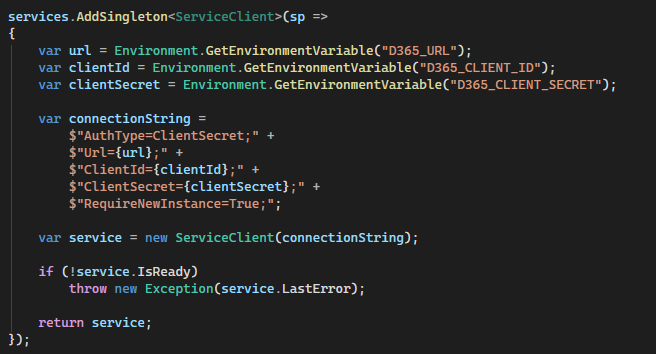
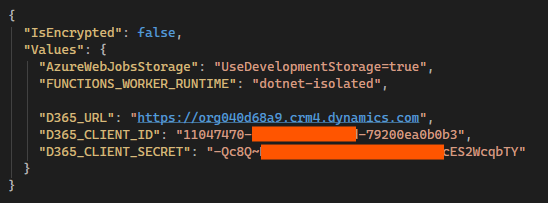
It is important to clarify that including the ClientId and ClientSecret directly in the code is not the safest or most recommended option, as it can pose a risk if the code is shared. For this reason, it is preferable to store them in environment variables.
ID365MailService
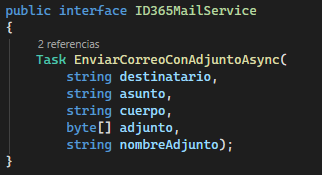
Now that the connection to Dynamics is configured, the next step is to create the part responsible for sending emails. It should be remembered that this part of the code is created separately to avoid mixing responsibilities.
First, the interface is defined, where each part of the email can be seen.
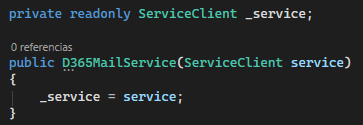
In order to communicate with Dynamics 365, a connection is required. Since it has already been created earlier, instead of creating it again, it is simply passed in.
FunctionHTTP.cs
The next step is to implement the Azure Function, which is responsible for coordinating the entire process.
First, it receives an HTTP POST request. This is the point where every time someone makes a call to the Azure Function URL, the flow begins.

This request contains the required information in JSON format. In order to read and handle that content, the JSON is converted into an object.

Now that we have the object, it is time to validate the received data to avoid errors later on. Below are some examples of validations.

With these validations, we ensure that the basic data required to start the process is present, and if any of it is missing, an error message is returned and the process is terminated.
With the data already validated correctly, the data is processed according to the needs of the functionality. In this case, the open incidents, the incidents closed in the last month, and a summary of the number of incidents by reason have been separated.
When the information is ready, the PDF document is generated using a document generation library.
Once the PDF is generated, it is ready to be attached to the email that will be sent from Dynamics 365, as shown below.
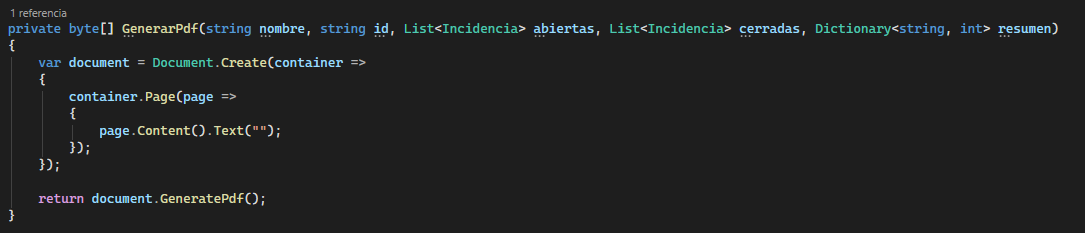
From the Azure Function, the service responsible for sending emails is simply called, passing it the necessary data, including the PDF file and the attachment name.

Complete process summary
- The Azure Function receives an HTTP request.
-
The data sent in the request body is read.
- The received information is validated.
- The required data for the report is processed.
- A PDF document is generated.
- An email is sent with the PDF attached using Dynamics 365.
It should be noted that for email delivery to work correctly, Dynamics 365 must be properly configured. The user or queue from which emails are sent must have a mailbox that is enabled and approved. If it is not configured this way, the email will be created correctly but will remain in a “pending send” state.
The path to access the mailboxes that need to be enabled is as follows: Advanced Settings -> Email Configuration -> Mailboxes.
Once the mailbox is enabled and approved, everything is ready. All that remains is to see an example of how the recipient would receive the email and the attached PDF document.
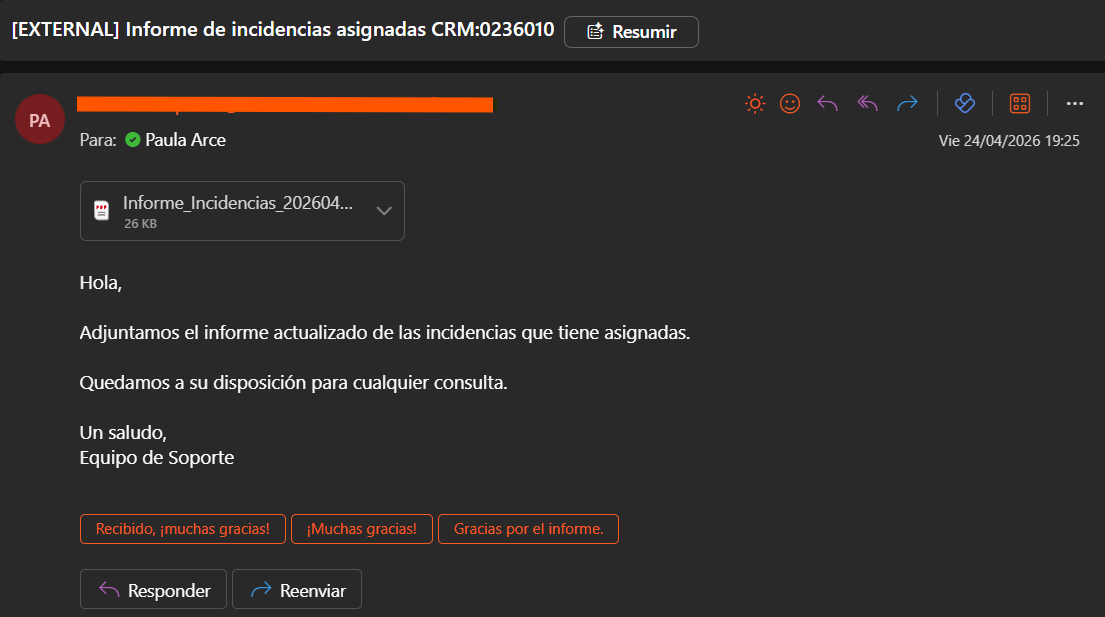
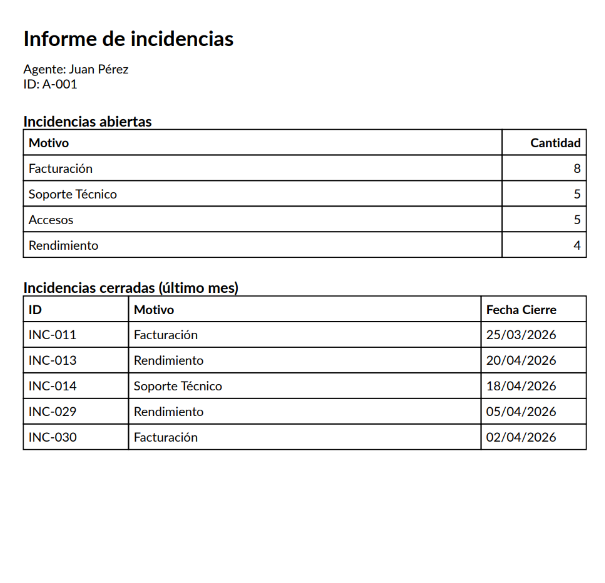
We have seen how to create an Azure Function that receives an HTTP request, generates a PDF document, and sends an email with the attached file through Dynamics 365.
One of the key points to highlight is the use of the Singleton pattern, which allows reutilizing the Dynamics 365 connection and avoiding unnecessary authentications.
In addition, separating the code into different files helps make it clearer, more organized, and easier to understand, especially as the project in which it is implemented grows.
This solution can be used as a base for creating similar functionalities using Azure Functions and Dynamics 365.
About the Author: Paula Arce